Objects, labels, and pins
With the Select tool, clicking an object or text label opens a menu of modifications for it.
The object drawer
The object drawer lists every object in your current object set. A dropdown at its top switches between available object sets without leaving the map. Clicking an object selects the Add Object tool and readies that object for placement; the current selection can be cleared with the X button.
In the 2.0 interface the drawer is a tabbed panel — Tiles and Objects share the same drawer — and in full-pane view it can pop out into a floating panel.
Toggling freeform mode (the diamond button) lets objects be placed anywhere instead of snapping to the grid. Holding Alt enables edge-snap for a placement (snap to a cell edge rather than its center); holding Alt+Shift enables freeform for a single placement without toggling the mode. These modifiers also work while dragging an object with the Select tool.
Object placement
Objects snap to cell centers by default. Beyond freeform and edge-snap (above), hex maps support up to four objects per hex.
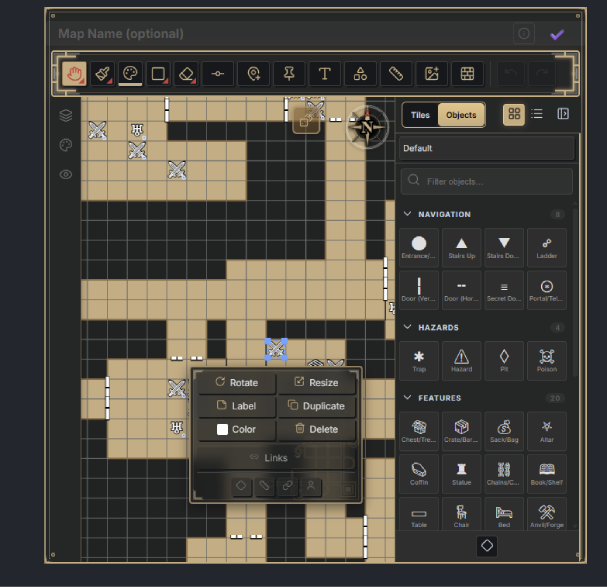
Selection menu
Clicking an object with the Select tool opens its selection menu:
- Rotate in 45-degree increments (or press r).
- Add a custom tooltip shown on hover.
- Duplicate the object.
- Toggle freeform mode for it.
- Link a note to it.
- Link it to another object (stairs between floors, portals across maps).
- Copy a deeplink to the clipboard.
- Change its color.
- Resize it, up to 4× its starting size.
- Delete it (or press del).
Object sets
Object sets define custom categories and objects. Windrose ships with a default set (~40 built-in object types across categories — doors, stairs, portals, traps, chests, altars, monsters, NPCs, markers), and more are available as downloadable content packs. Object sets can be set globally or per map, and offer:
- Categories (e.g. “hazards”, “doors”).
- Labels — name any object.
- Icons — any Unicode character, an RPG Awesome icon, or an imported image.
Object sets can be exported for sharing and imported from others, all through settings.
Text labels
Text labels put arbitrary text on a map, free of the grid. Clicking with the Add Text Label tool opens the label modal, where you set font, size, and color, with a live preview, and optionally link a note.
Selecting a label with the Select tool lets you drag it to reposition, and:
- Edit it — reopens the dialog to change the text or its styling.
- Rotate it in 45-degree increments (or press r).
- Link note — link it to a vault note.
- Delete it (or press del).
Note pins
A note pin (requires the Note pins feature) links a spot on the map directly to a vault note and displays as a pin icon. It’s a lighter-weight alternative to an object for when the note is the point of interest. Pin color and icon are configurable.
Shape overlays
Shape overlays (requires the Shape overlays feature) place decorative shapes — rectangles and circles — on the map for annotation and embellishment, independent of the painted grid.
Placing a rectangle is corner to corner, so it can be any proportion, square included. A circle is placed center first, then a second click sets the edge, matching the Fill Circle tool. Placement snaps to the grid by default; hold Alt+Shift, or switch on freeform placement mode, to place freely instead. Selecting a placed shape shows a Snap to Grid/freeform toggle that converts it between the two, and a selected rectangle also gets a Rotate action that turns it in 45-degree steps around its center.
Note linking and deeplinking
Linking from map to notes
Objects, text labels, and note pins can be linked to vault notes. Holding Cmd/Ctrl and hovering a linked item shows a note preview; Cmd/Ctrl-clicking opens the note in a new tab. A previewable link also appears in the item’s selection menu.
Deeplinking from notes to map
Objects can produce deeplinks. Selecting an object and pressing its deeplink button copies a link to the clipboard; pasted into any note, clicking that link opens the map and zooms to that object.
Deeplinks work in both Reading mode and Live Preview. Hovering a deeplink shows a small map thumbnail with a crosshair on the target.