Drawing
Modifying the grid
The grid is the set of lines superimposed on the canvas, and the primary interaction language for Windrose — the paint tool paints a cell, objects are placed in cells, and so on.
Grid maps have two variations of grid:
- The primary grid: the main imposed set of lines.
- The interior grid: lighter lines drawn inside blocks of painted cells so the grid stays visible through paint.
Both are configurable in settings.
Grid size
Cell size
Cell size for both hex and grid maps is generally relevant only relative to a background image. Without one, cell size is mostly a function of zoom. With one — especially an image that already has a drawn grid — sizing the grid to match the image matters.
Grid area
Grid maps have effectively infinite area; the grid draws out as far as you scroll. Hex maps have a bounded area — both by convention (world maps have edges) and for performance (hexes are slightly more expensive to draw).
Image backgrounds
Any static (non-animated) image in your vault can be set as a map’s background through Map Settings.
Background images under ~50MB are recommended on most devices. Larger images are supported but may carry performance implications depending on your device.
A series of presets sizes the grid to your image — sparse (fewer, larger cells), medium, or dense (many smaller cells) — or set a custom cell count. Fine control over exact offsets and cell size is also available, with sub-pixel precision (e.g. a cell height of 20.2px).
Cell painting
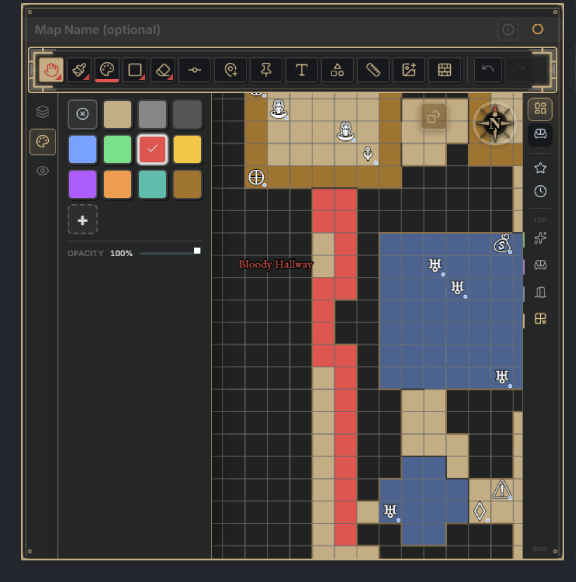
Painting is the primary mode of mapmaking — think filling in squares on graph paper. Use the Paint Cells tool and click a cell to fill it with the selected color. Click one at a time, or drag to paint many.
Segment painting (GRID ONLY)
To represent something that isn’t a full square, segments subdivide a cell into 8 sub-triangles — quarter cells, half cells (alcoves, shallow closets), and true diagonals.
For smooth diagonals specifically, fill an entire staircase edge in one action with the Diagonal Fill tool: click in the “crook” of a 45-degree staggered run of painted cells and the gaps fill with diagonal segments.
Area painting
The Fill Rectangle and Fill Circle tools fill large areas with fewer clicks, showing a live preview of the affected space. Rectangles go corner to corner (two clicks); circles go from center outward to the radius.
Edge painting
Color the edges of cells (primary or interior grid) for clarity, embellishment, or subdivision — one edge at a time with Paint Edges, or in a straight line point-to-point with Paint Line.
Both tools expose a Thickness control in a floating bar while active. The width is recorded per stroke, so existing strokes keep the thickness they were drawn with. The default is automatic — a theme-derived width — and a reset control returns to it.
Freehand drawing
The Freehand Draw tool creates organic shapes untied to the grid. Draw with mouse or touch in any shape. Bring your endpoint back near the start and you can create a closed polygon; a visual indicator shows when you’re close enough to close.
A closed polygon fills automatically and behaves like any painted area — interior grid lines, border, and cell-by-cell erasure included. An unclosed curve is erased in its entirety with a single click.