Getting started
As of v2.0, WindroseMD is a standalone Obsidian plugin. Earlier versions shipped as a Datacore compiled script paired with a small companion plugin that managed settings; that split is gone. Everything — rendering, drawing, settings, and Obsidian integration — now lives in one plugin, with no dependency on Datacore or any other plugin.
If you are coming from the old Datacore-based version, your maps migrate automatically. On first load the plugin imports your previous settings and locates your existing data files — no manual steps. You can disable the old version afterward.
The plugin has a rich settings menu, offering many global defaults and customizations. Its sections are described under Global settings; several are hidden unless the relevant feature is enabled (see Feature toggles and onboarding below).
Installation and updates
Windrose is installed like any other Obsidian plugin — from the Community Plugins browser, from BRAT for beta builds, or manually by copying main.js, styles.css, and manifest.json into <vault>/.obsidian/plugins/windrose-md/. There is no longer a separate settings plugin to install or update.
Windrose 2.2.0 and later require Obsidian 1.13.0 or later, which supplies the settings API the plugin’s settings page is built on. Vaults on an earlier Obsidian release remain on 2.1.3.
Plugin commands
Windrose registers a handful of global commands, available from Obsidian’s command palette:
- Insert map — creates a new
windrose-mapcode block in the current note. - Generate random dungeon — opens the dungeon generator.
- Open map in full pane — opens a map in a dedicated workspace tab.
Additional commands (telemetry, map picker, etc.) may appear depending on enabled features.
windrose-map code blocks
Windrose embeds maps in notes using windrose-map code blocks. The Insert map and Generate random dungeon commands create these automatically.
The code block format is simple YAML:
- id (required): Unique map identifier. Auto-generated by commands.
- name: Display name shown above the map.
- type:
gridorhex. - subhex: Sub-map key. Renders that sub-map in place of the root map (see Sub-maps).
A map in a note is just a code block:
```windrose-map
id: your-map-id
name: My Map
type: grid
```
This works the same as any other codeblock in Obsidian. For instance, put it in a callout like this:
> [!INFO]
> ```windrose-map
> id: your-map-id
> name: My Map
> type: grid
```
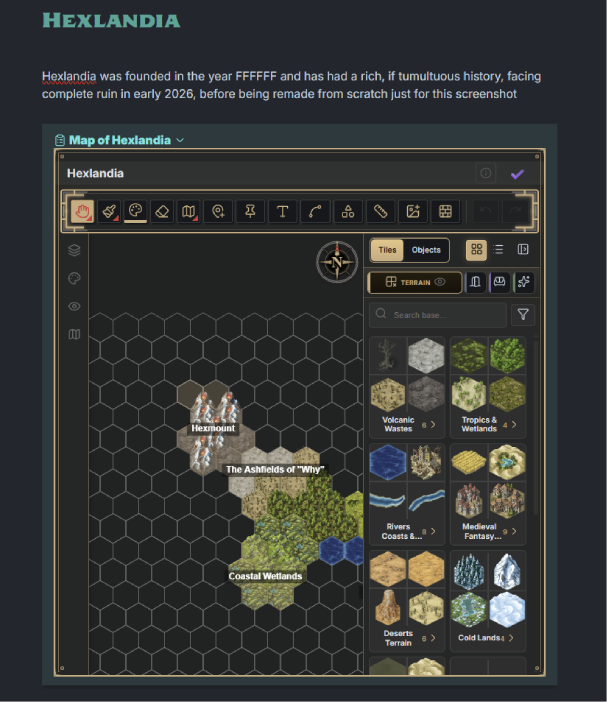
Maps render in Reading mode, Live Preview, and inside callouts. The drawing data itself is stored separately in windrose-map-data.json in your vault, keyed by id — plain JSON that travels with your vault and works with Obsidian Sync. Delete a code block and the data remains; paste the block elsewhere and the map comes with it.
Data safety
The map data file is defended in depth. Writes are guarded by a lock, every save is journaled (a crash-recovery copy kept in Obsidian’s local storage, compressed for large maps) and saves hold Obsidian’s quit until they finish flushing, and a data file that fails to parse at load is never overwritten — loading refuses and surfaces a recovery panel instead of silently substituting a blank map. Windrose also keeps backups: two alternating known-good backup slots, written at most once per 15 minutes, plus a daily slot written once per day, with a Restore from backup action. A backup is not replaced by a file that suddenly shrinks to less than half its size while holding as many maps (the larger copy is kept for up to a week), so one bad save cannot overwrite every backup. A map too large even for the compressed recovery copy shows a notice saying so.
With the same map open in more than one pane, every save carries a write generation, so two views can’t silently overwrite each other’s work. If real edits collide, the affected view shows a “map was changed in another pane” panel with a reload button — a couple of seconds of edits in one pane are lost and announced, instead of another pane’s whole session vanishing silently.
Map types
Windrose has two styles of map:
- Grid: square grid — dungeons, buildings, battlemaps.
- Hex: hexagonal layout, radial (rings from a center) or rectangular (offset rows) — world and region maps.
Most tools work on both. A handful are specific to one type or the other and are marked (GRID ONLY) or (HEX ONLY) throughout these docs.
Feature toggles and onboarding
Windrose has grown a large tool set, and not every mapmaker wants all of it. Features can be individually switched on or off, and a first-run survey sets sensible defaults for how you map.
First-run survey
The first time Windrose loads, a short four-question survey appears:
- What kinds of maps do you make? (multi-select) — dungeons/buildings/battlemaps (grid) and/or overland worlds & regions (hex).
- Visual style — clean & simple, or rich & illustrated.
- Do you run games? — GM, or worldbuilding & notes.
- Dungeon generation — generate them for me, or I’ll draw my own.
Your answers only ever disable features from an all-enabled starting point — nothing is locked away. For example, answering “no hex maps” disables hex maps, regions, outlines, and sub-maps; “clean & simple” disables image tiles, walls, and shape overlays; “not gaming” disables fog of war and measurement; “no generator” disables the dungeon generator.
The feature list
The following features can each be toggled at any time from the Features section of settings:
- Hex maps
- Regions
- Outlines
- Sub-maps
- Fog of war
- Dungeon generator
- Image tiles
- Walls & paths
- Note pins
- Shape overlays
- Distance measurement
- Beacon
Off means hidden, never gone — flip a toggle back on and the tool, along with any data you made with it, returns. A feature that was never explicitly set reads as enabled, so existing maps upgrade without migration.
Freehand drawing is intentionally not a toggle — it is considered a core tool and is always available.