Regions and sub-maps (HEX ONLY)
Regions
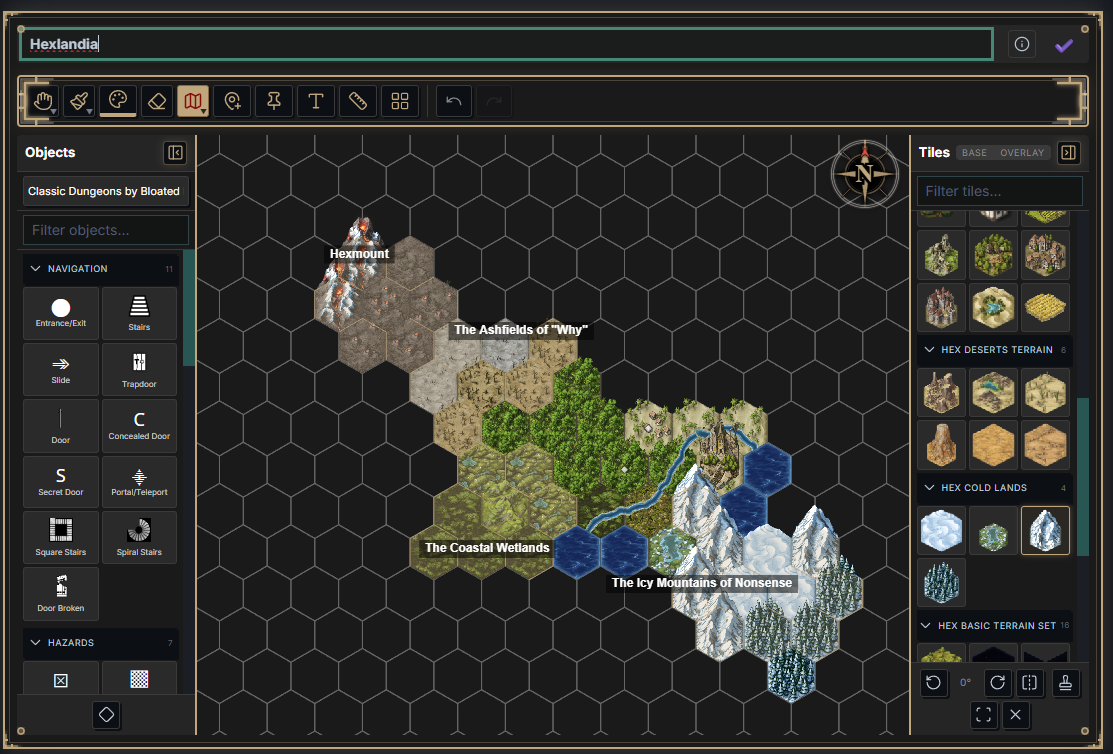
On hex maps you can declare regions with the region tools in the palette — Paint Region (cell by cell) or Draw Boundary (click out a polygon). Regions render at 30% of the selected color’s opacity; you can still paint over them and they coexist. (Requires the Regions feature.)
Name a region in the region toolbar that appears while creating or editing it; the toolbar also shows the region’s hex count. A region’s name floats over it like a fixed label and scales with zoom.
A regions menu in the Map Controls lists every region on the map; from there you can toggle a region’s visibility or jump to it. Edit a region by clicking it with a region tool, or via a right-click / long-press context menu — to change its name, color, assigned hexes, or delete it. Regions can also link to notes.
Sub-maps (HEX ONLY)
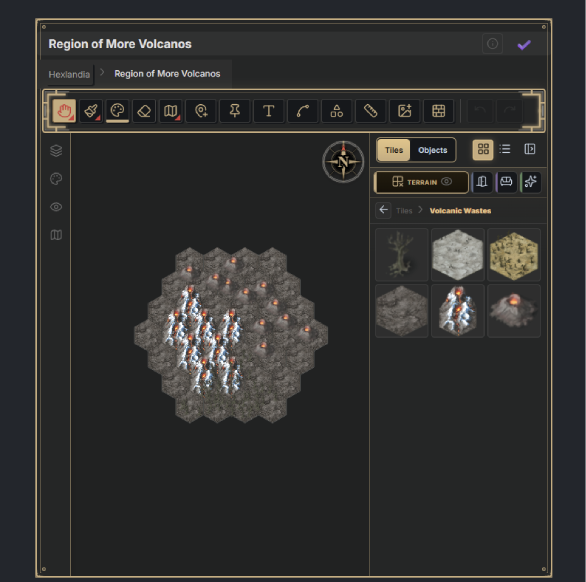
Hex maps can contain sub-maps — nested maps of their own (independent of regions). Create one by double-clicking a hex, or via the right-click / long-press context menu → “Create sub-map.” (Requires the Sub-maps feature.)
Sub-maps default to radial at 7 rings, adjustable per sub-map in Map Settings. Each is effectively a full Windrose instance and supports all tools and functionality, including further sub-maps — there’s no hard nesting limit, though very deep nesting may carry performance or data-size implications.
Inside a sub-map, a breadcrumb UI above the tool palette shows where you are in the hierarchy and lets you jump back up. A hex containing a sub-map shows a diamond icon in its center.
Seamless zoom
Zooming in past a threshold on a hex that holds a sub-map descends into it directly — and the transition is seamless in both directions. The sub-map opens occupying the parent hex’s exact screen footprint with the point under your cursor held fixed, and zooming back out surfaces to the matching parent view. A world map and its sub-maps read as one continuous zoom rather than separate maps opened by hand.
The parent-map backdrop
Inside a sub-map, a static snapshot of the parent map renders behind the sub-grid, aligned to where you dove in — the world doesn’t vanish at the sub-map’s edge. Each nesting level keeps its own backdrop, so surfacing from a deep dive re-exposes the outer level’s view. The backdrop can be toggled off in settings, and a recenter view button (keyboard: Home) snaps the view back to the sub-map’s fit.
Adjacent sub-maps
When neighboring hexes also hold sub-maps with content, Windrose can display them as previews around the current sub-map — and clicking one navigates directly across, sliding the view over smoothly rather than surfacing and diving again.
The adjacent display is off by default: toggle it with the layers button beside the breadcrumb while inside a sub-map. The button appears when at least one neighboring sub-map has content.
Sub-maps versus detail levels
Sub-maps are separate nested maps you drill into from one hex. If you want the same map to subdivide as you zoom, with no separate map to open, see Detail levels. The two cannot be combined on one map.
Deleting a sub-map
Right-click (or long-press) a hex that has a sub-map and choose Delete Sub-Hex. A confirmation itemizes everything inside — painted cells, shapes, tiles, objects, text labels, and any nested sub-maps — before anything is removed.
Deleting a sub-map removes its whole nested tree and cannot be undone.
Embedding a sub-map
A sub-map can also be embedded on its own, without its parent, using the subhex key on a windrose-map code block (see windrose-map code blocks).